





Making repeated selections in SOLIDWORKS can slow down even simple workflows. In this quick tip, you’ll learn how to use Selection Sets to save and reuse groups of edges, faces, components, and more with a single click.
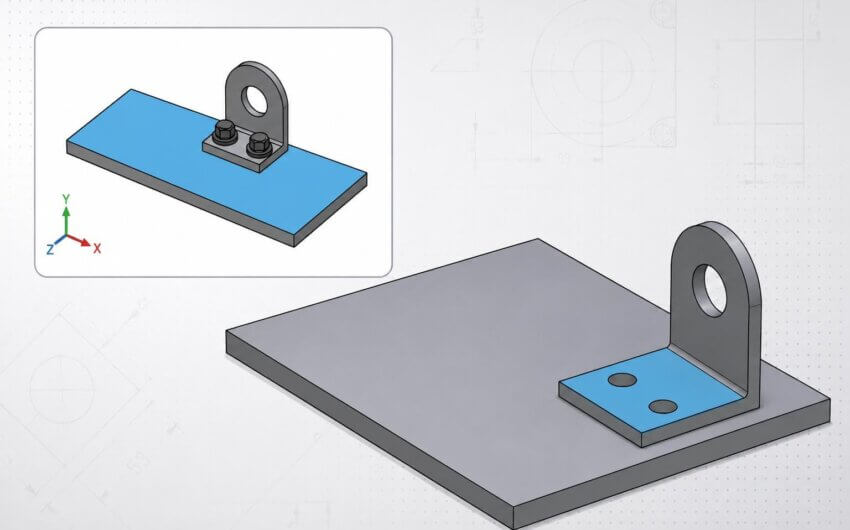
Using a Selection Set to select several saved faces in a single click.
Selection Sets allow you to group entities ahead of time so you don’t have to manually reselect them for future operations. You can create a set by selecting entities, right-clicking, and saving them as a new selection set. These sets appear in the FeatureManager tree, where they can be renamed, updated, or edited at any time. You can even mix entity types or add and remove items as your design evolves.
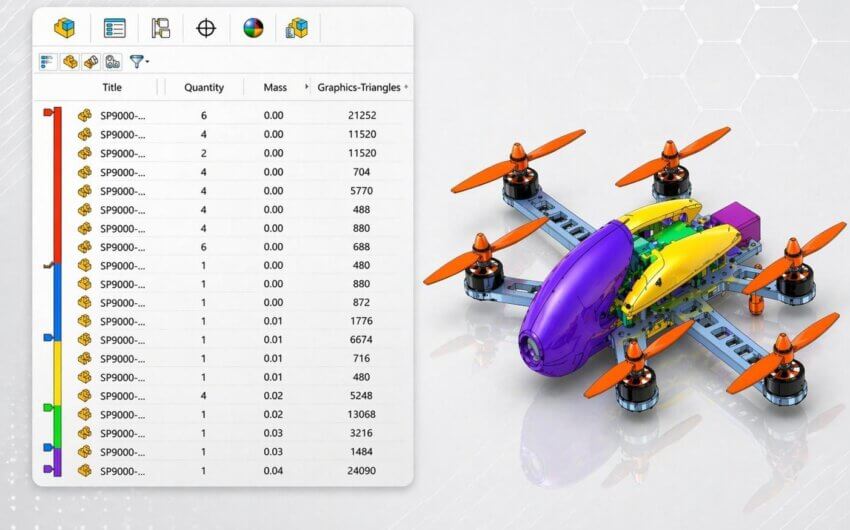
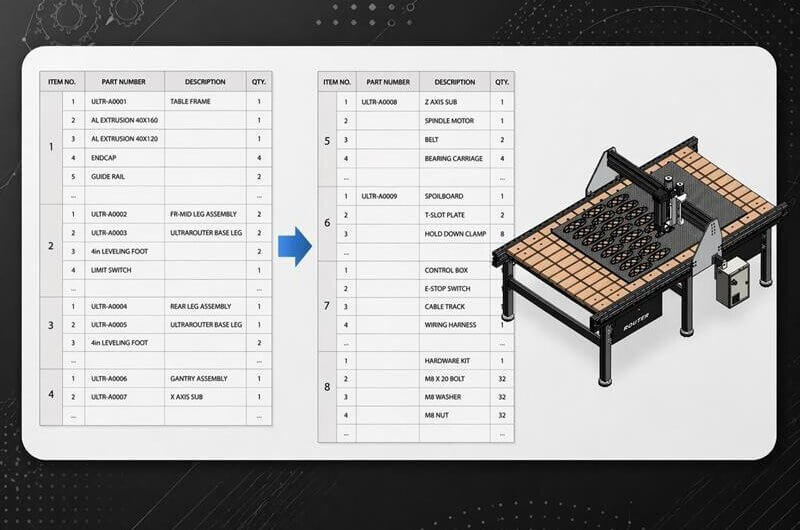
This approach is especially useful in large assemblies or complex parts where locating the same geometry repeatedly can be tedious. Instead of dozens of clicks, Selection Sets reduce the process to one.
Creating a Selection Set of faces to quickly re-select them in future operations.
Selection Sets help streamline common operations and improve efficiency in day-to-day modeling. For more tools that reduce repetitive work, explore our SOLIDWORKS Essentials for Part Design course.